Find your next watch
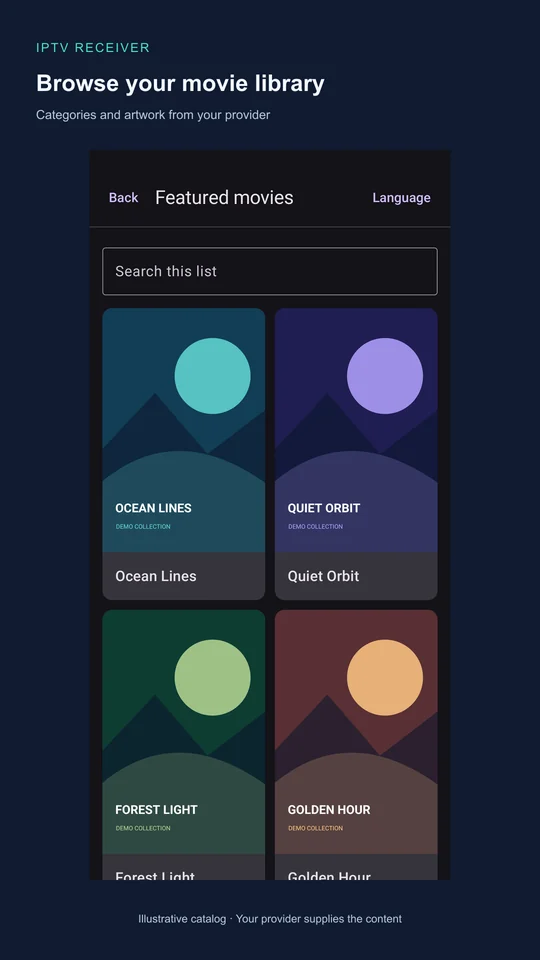
Search channels, movies and series. Filter by genre and explore seasons, episodes and title details.
 IPTV Receiver
Android · Phones & tablets
Watch live TV, movies and series from your Xtream-compatible provider. Pick up where you left off or save supported movies and episodes to watch offline on your Android phone or tablet.
Android 8.0+ · Development build · Not yet on Google Play
What you can do
Search channels, movies and series. Filter by genre and explore seasons, episodes and title details.
Resume a movie or episode, track what you have watched and continue a series. Progress stays on your device.
Browse your channel guide and replay past programmes when your provider offers catch-up.
Go fullscreen or keep watching in picture-in-picture while using other apps. Move the floating video and control playback; closing it or locking the phone pauses it. Learn the gestures →
Download supported movies and episodes to a local folder. Track transfers, pause, retry, play and remove saved media in Downloads.
Choose from ten interface languages and set parental category locks. Adult content is blocked by default, including offline.
Download & keep
Completed downloads play after an app restart without internet or a fresh provider login. Choose private app storage or a local folder on supported device, SD or USB storage.
Direct movie and episode files are supported. Adaptive-stream downloads, offline DRM licensing and live recording remain planned. Read the offline viewing guide for details.
Open a supported movie or episode and tap Download for offline viewing. Unmetered connections are used by default.
See progress and file sizes, pause or retry transfers, and play completed titles. Settings → Downloads chooses where new files are saved.
Remove one download or select several to delete after confirmation. Watch history and viewing progress stay on your device.
Get started
You need an Xtream-compatible account and permission to access its content. IPTV Receiver does not include channels, media or a subscription.
Download the APK and open it. Allow installation from your browser or file manager if Android asks.
Enter your provider’s server address, username and password. HTTP and HTTPS work automatically; prefer HTTPS when available.
Choose Live TV, Movies, Series or the TV guide. Your library comes from your provider.
Guides & source
Start with the user guide for setup, controls and troubleshooting. Developers can build the app or read the contributor guide.
See what has been tested, the full validation plan, what is planned and the latest release and checksum.
A few useful answers
Go Home while playing or choose Picture-in-picture in the player. Drag the window to an Android-supported edge position. On Android 12+, use two fingers to pinch/spread or double-tap to change size. Tap once for play/pause, supported seeking, expand and close. Android controls the size limits; gestures and menus can vary by device. See the PiP guide for permissions and troubleshooting.
No. Locking the phone or closing the floating window pauses playback. Unlocking or reopening the app keeps it paused until you choose Play or Resume. Going Home after pausing also keeps it paused and does not open PiP automatically.
After playback pauses, stops, ends or fails, your device’s normal inactivity timeout applies. Brief buffering or reconnects keep the screen awake for up to one minute. Touching the screen resets Android’s inactivity timer; the app does not change your device settings.
On this device, separately for each provider account. Resume points and watched status stay until you clear them. Uninstalling or clearing app storage removes local data; there is no cloud sync.
In private app storage by default, or in a local folder you choose in Settings → Downloads. Downloads stay until removed and are excluded from cache cleanup. Files in a shared folder can be opened by other apps and may remain after uninstall. Explicit logout hides the account’s library until you reconnect.
The current app is for Android phones and tablets. Dedicated Android TV, Windows, LG webOS and Samsung Tizen clients are planned.
Yes. The project uses the MIT License, allowing use, modification and redistribution, including commercially. Keep the copyright and license notice. Provider content and third-party components have their own terms.